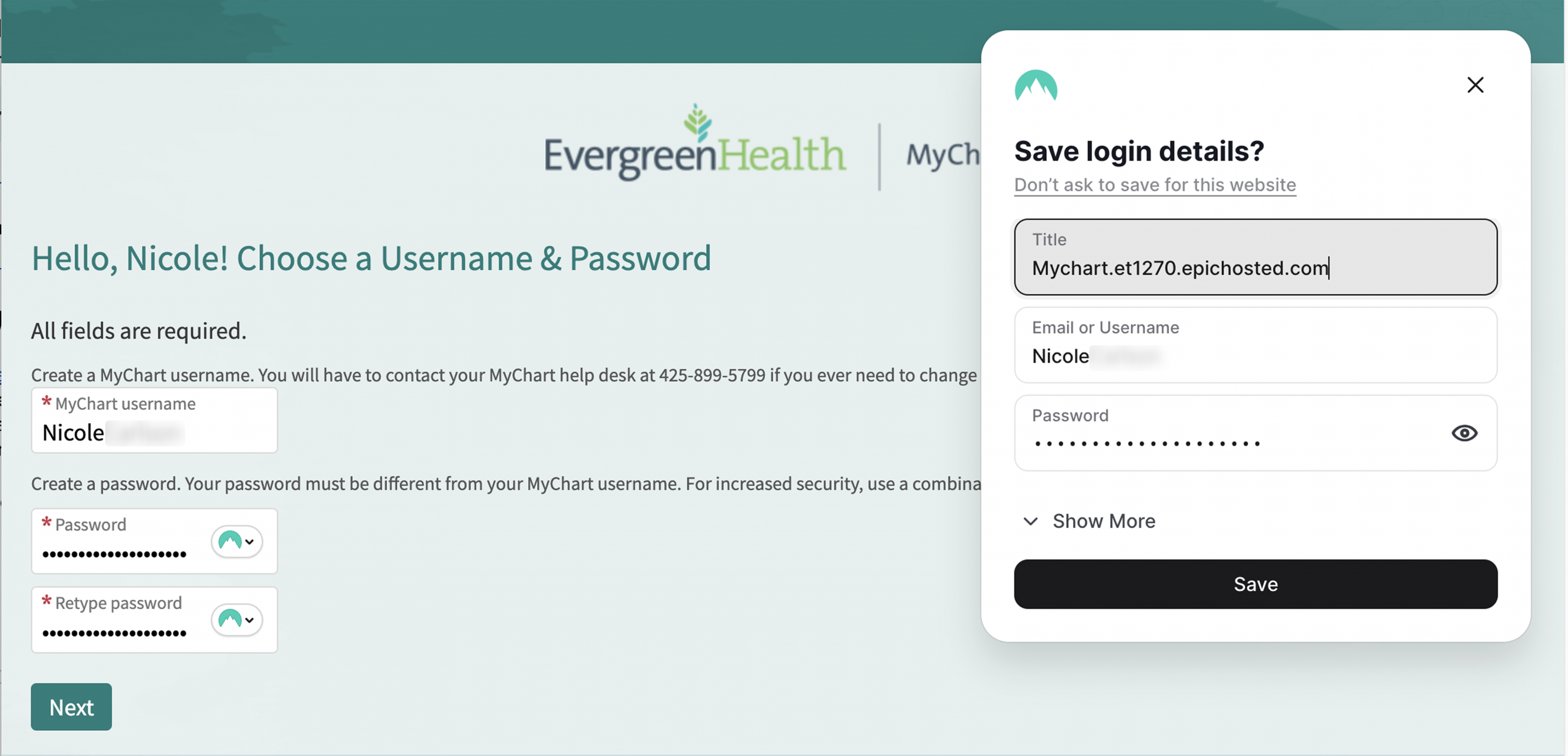
RoboForm earned our top spot for best password manager in 2026, with NordPass and Proton Pass as close runners-up after testing 12+ password managers across desktop, mobile, and browser.
By:Gunnar Kallstrom , Updated June 3, 2026 Head of information systems and cybersecurity research
With data breaches exposing billions of credentials every year, a password manager is no longer optional. These tools generate strong, unique passwords for every account, store them in an encrypted vault, and autofill them when you log in. You only need to remember one master password. Most password managers also support biometric unlock (Touch ID on Mac, Face ID on iPhone, fingerprint on Android and Windows Hello) so you rarely have to type it.
Our 2026 guide compares the top password managers based on security, ease of use, pricing, and platform compatibility. Whether you need a basic personal plan, a shared family vault, or a business solution, we’ll help you find the right fit.
Each provider below has been hands-on tested by me and rated across encryption strength, two-factor authentication (2FA), form filling, passkey support, and overall user experience.
Supports OTP, TOTP, email/SMS, built-in authenticator, and hardware security keys
— Unlimited devices
— Passwordless Unlock with biometrics or passkey
— Built-in TOTP authenticator
— Data breach monitoring for up to 5 emails
— Secure folder sharing
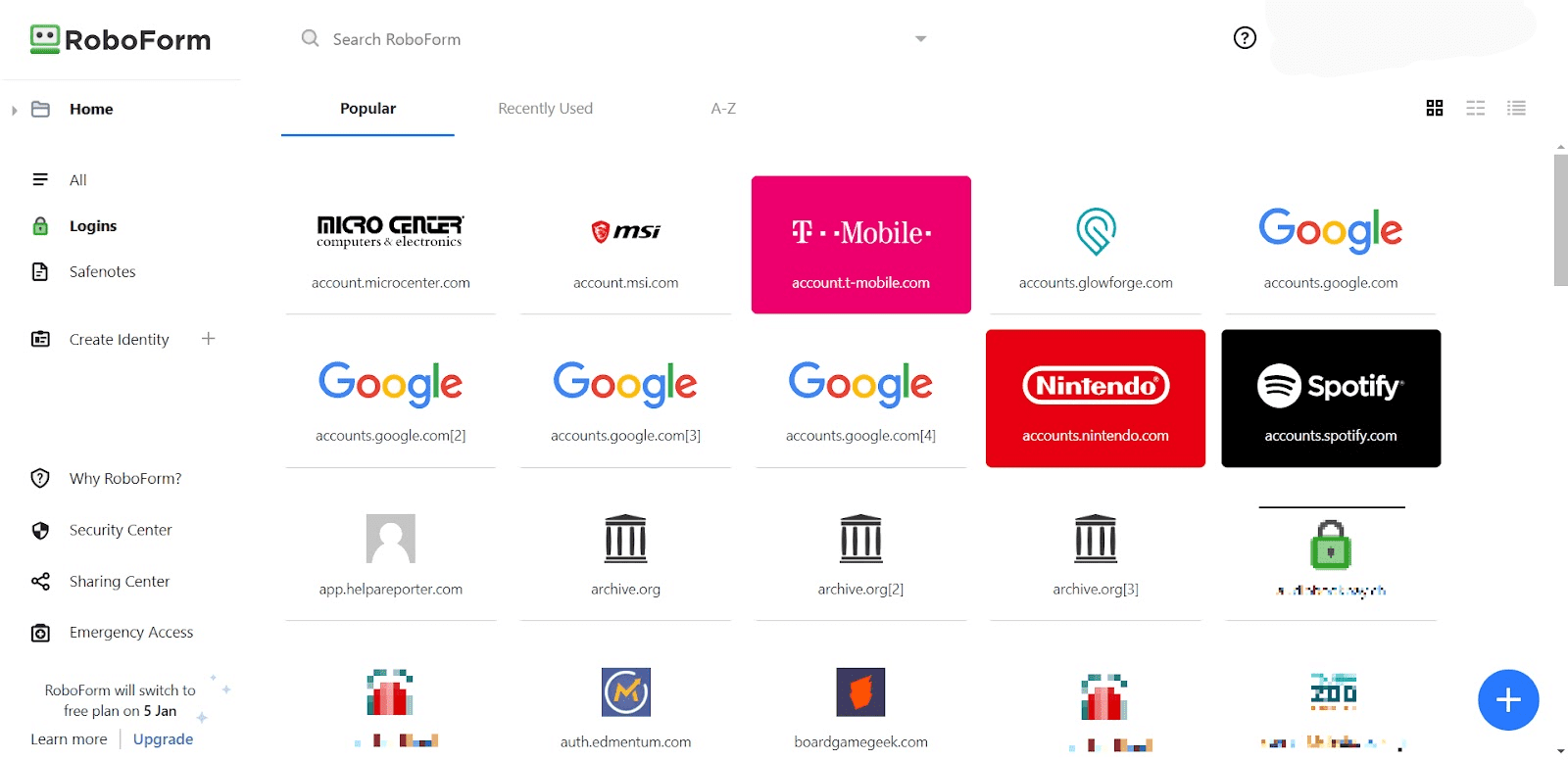
I found RoboForm to be a fast, precise password manager that excels at one-click logins and form filling. It’s intuitive on desktop and mobile, with standout features like batch logins, built-in TOTP authentication, and support for logging in to desktop apps. RoboForm’s browser extension was smooth in testing, and its form-filling was among the most accurate I’ve seen.
RoboForm helped me fill out complex web forms and log into dozens of sites in seconds. I especially liked the option for local-only storage and the Security Center, which flagged reused or weak passwords and highlighted potential breach exposure.
Who is RoboForm best for? RoboForm is a great fit for individuals, families, and small teams who want a fast, reliable tool with strong form-filling capabilities. It’s also ideal for users who prefer flexible data storage options and responsive customer support.
Recent upgrades to RoboForm:
RoboForm recently improved Android autofill with Accessibility service integration, redesigned the iOS app with a browser-style UI, and added data breach monitoring through Have I Been Pwned. Users can now also import credentials from Safari on iOS.
RoboForm has expanded authentication options with advanced 2FA, including hardware security keys and passkeys for Passwordless Unlock. Users can access RoboForm using their face, fingerprint, PIN, or security key.
RoboForm also supports storing and autofilling passkeys for compatible websites, making it easier to go passwordless as more sites roll out support.
RoboForm’s pricing: The Free plan includes unlimited logins on one device. Premium starts at only $0.99 per month, with current promotion, and the Family plan includes access for up to five users. There is a 30-day free trial for the Premium or Family plans, but the Business plan offers a 14-day trial.
Pros and cons of RoboForm
Pros
AES-256 encryption with zero-knowledge security
Data Breach Monitoring for five emails
Built-in TOTP authenticator for 2FA logins
Accurate one-click logins and form-filling
Extensive customer support like chat, callback, email, and help center
Cons
Interface feels outdated compared to newer competitors
Android, iOS, Linux, MacOS, Web (Chrome, Edge, Firefox, Opera, Safari), Windows
Intuitive interface, smooth sync, easy setup, plus passkey and email masking support
Auto-save and autofill functions across browsers perform reliably
Zero‑knowledge architecture, XChaCha20 encryption, audited by Cure 53
Supports TOTP, FIDO U2F (YubiKey), and authenticator apps
Unlimited passwords
Autofill
Breach scanner
Passkeys
Email masking
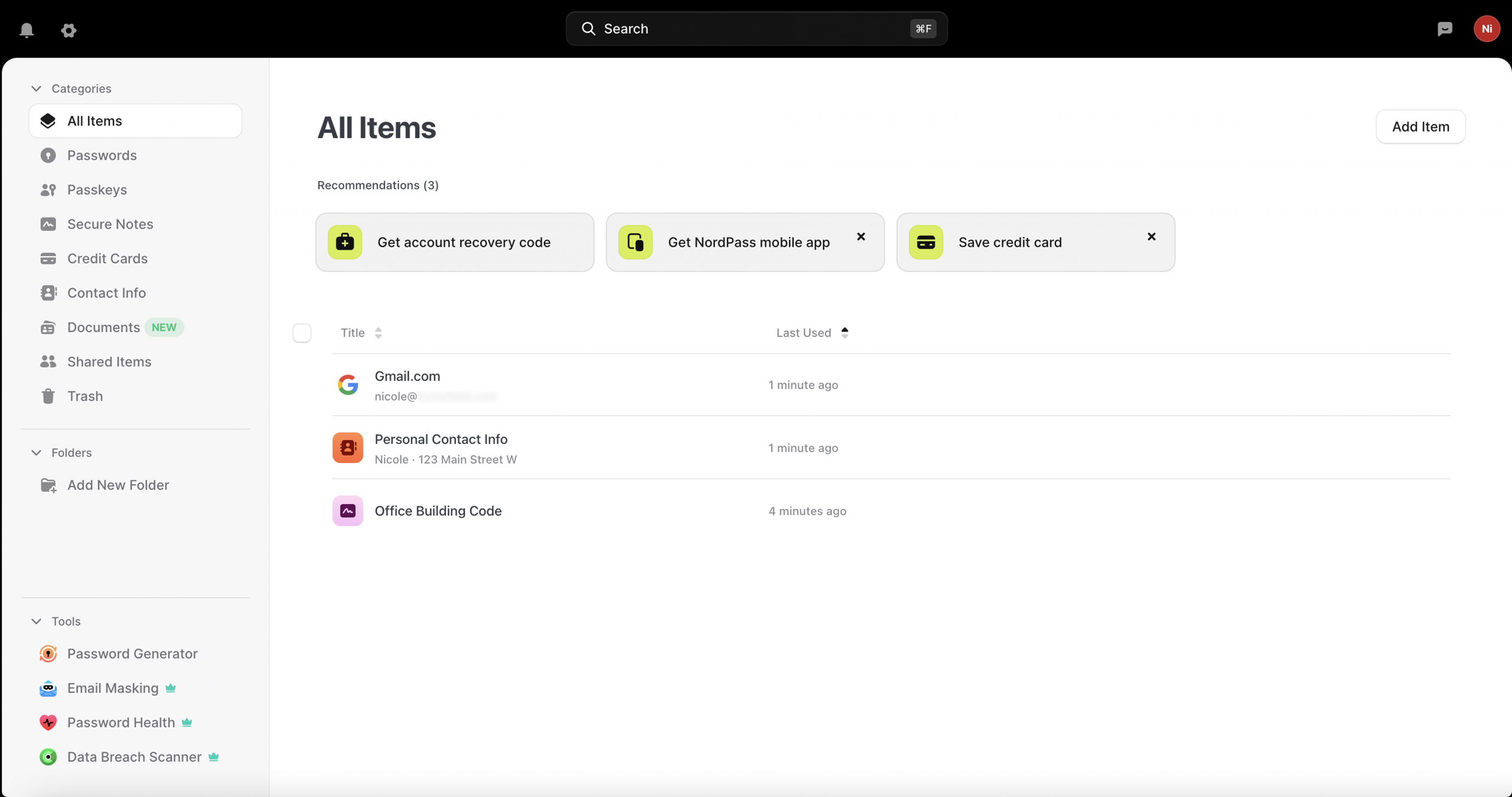
I found NordPass to be a well-balanced password manager with strong security and a smooth user experience. It’s simple to use on desktop and mobile, and its Business plan includes useful tools like vault health reports, data breach scanning, and activity logs. I especially appreciated how clean and fast the app felt across all platforms.
NordPass helped me securely manage company logins and detect weak or reused passwords. The reporting dashboard made it easy to spot security issues, and the admin console let me manage user access, view logs, and enforce settings like 2FA or password health scores.
Who is NordPass best for?
NordPass works well for individuals, families, and small to midsize teams. The free plan is good for solo users, while Business and Enterprise plans offer centralized controls and helpful security monitoring for growing companies.
Recent upgrades to NordPass:
NordPass added passkey support and launched email masking for safer sign-ups. Admins can now see how often weak passwords are used and receive alerts when users are part of a data breach. Device syncing and mobile performance have also improved.
Passkey storage and autofill is available on all plans, including Free, letting you manage traditional passwords and passkeys from a single vault.
NordPass’s pricing:
The Free plan includes unlimited passwords on one device. Premium starts at $1.49/month (billed annually), and the Business plan starts at $3.59/user/month. All paid plans include a 30-day money-back guarantee.
Pros and cons of NordPass
Pros
Strong XChaCha20 encryption and secure password recovery
30-day free trial of Premium features
Business plan allows secure sharing among team members
Includes 3GB of cloud storage per user via NordLocker
Cons
Free plan lacks sync and security monitoring features
No phone support — only live chat or email
Family plan lacks shared folders, making sharing slower
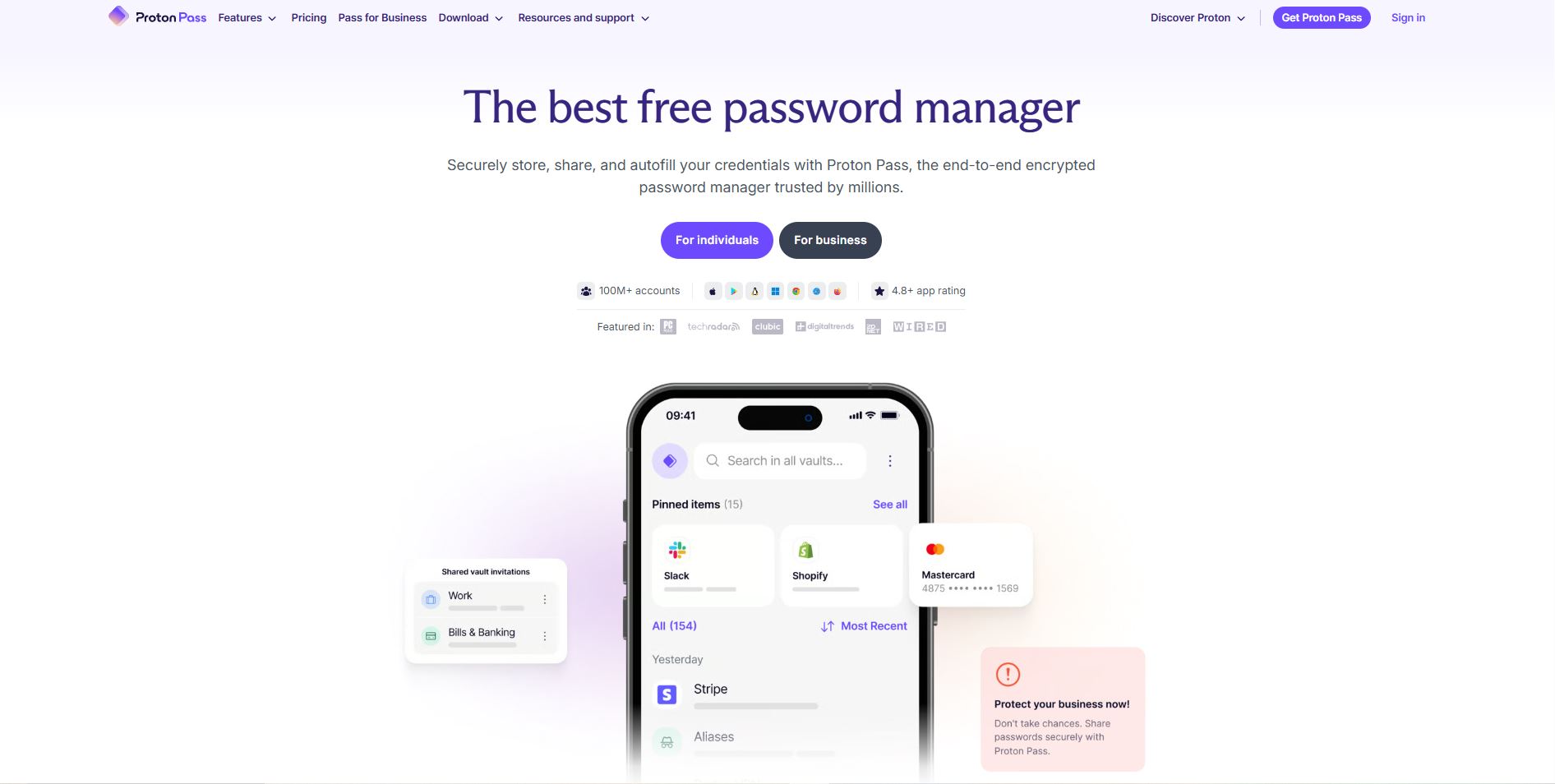
I found Proton Pass to be a privacy-focused password manager that benefits from Proton’s established security ecosystem. If you already use Proton Mail or Proton VPN, Pass fits right in, sharing the same account, encryption standards, and Swiss privacy jurisdiction. The browser extension is clean and fast, and the mobile apps handle autofill reliably on both iOS and Android.
Proton Pass helped me generate unique email aliases for new signups, which is a useful feature for reducing spam and protecting your real address. It also stores passkeys and built-in 2FA codes alongside traditional credentials, so you don’t need a separate authenticator app. The free plan is generous: unlimited passwords and devices with no storage caps, making it one of the strongest free options available.
Who is Proton Pass best for?
Proton Pass is a good fit for privacy-conscious users and anyone already invested in the Proton ecosystem. It’s also a strong choice if you want a capable free password manager without the device or storage restrictions that other free tiers impose.
Proton Pass pricing
The Free plan includes unlimited passwords, unlimited devices, and 10 email aliases. Pass Plus starts at $2.49/month (billed annually) and adds unlimited aliases, Dark Web Monitoring via Pass Monitor, Proton Sentinel protection, and integrated 2FA. Proton Unlimited ($9.99/month, billed annually) bundles Pass Plus with Proton Mail, VPN, Calendar, and Drive.
Pros and cons of Proton Pass
Pros
Generous free plan with unlimited passwords and devices
Built-in email aliasing for privacy
Swiss privacy jurisdiction and open-source clients
Integrates with the broader Proton ecosystem
Cons
Newer product with a smaller track record than established competitors
Dark Web Monitoring only available on paid plans (Pass Plus and above)
Autofill works well for logins but requires manual steps for complex forms
Supports TOTP apps, biometric login, FIDO U2F keys (like YubiKey), and KeeperDNA for extra protection
Supports TOTP apps, biometric login, FIDO U2F keys (like YubiKey), and KeeperDNA for extra protection
Unlimited password storage
Autofill and auto-save
BreachWatch dark web monitoring (add-on)
Secure record sharing
Vault customization options
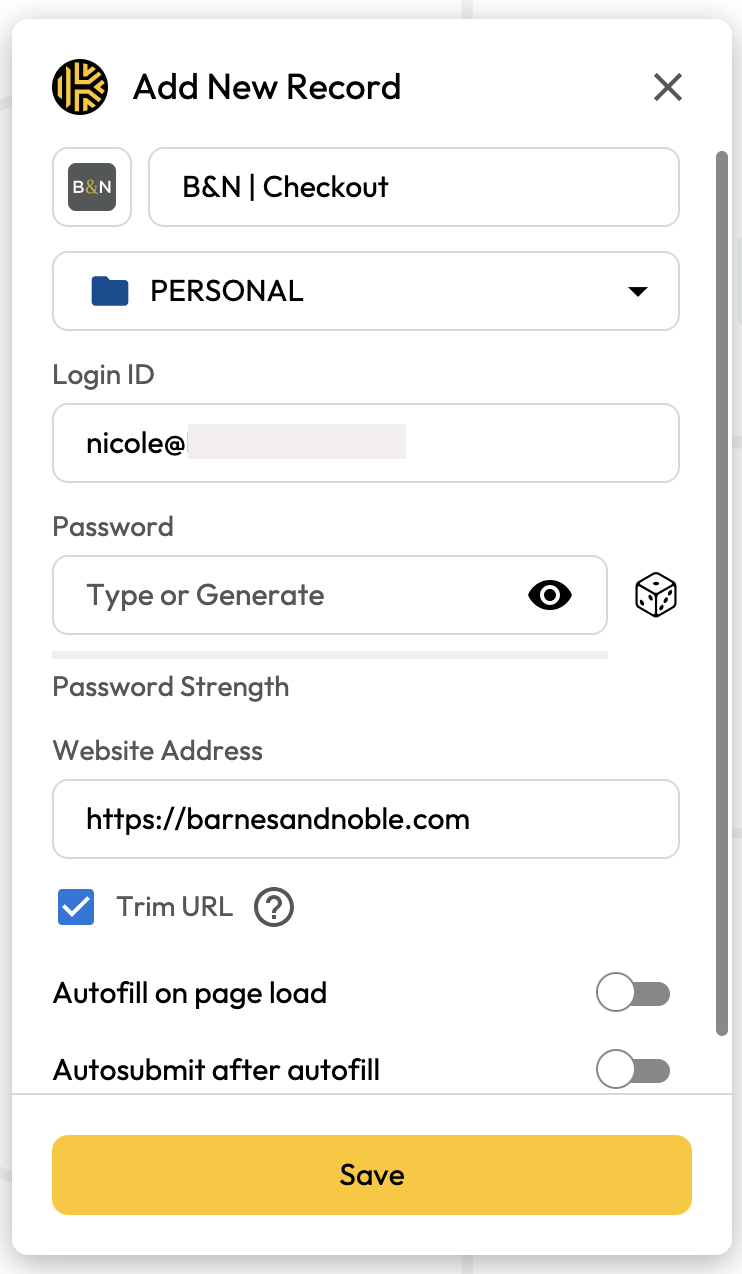
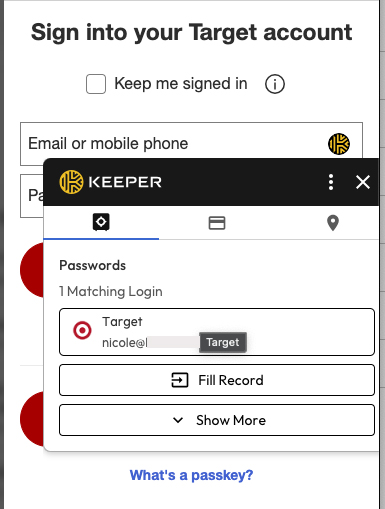
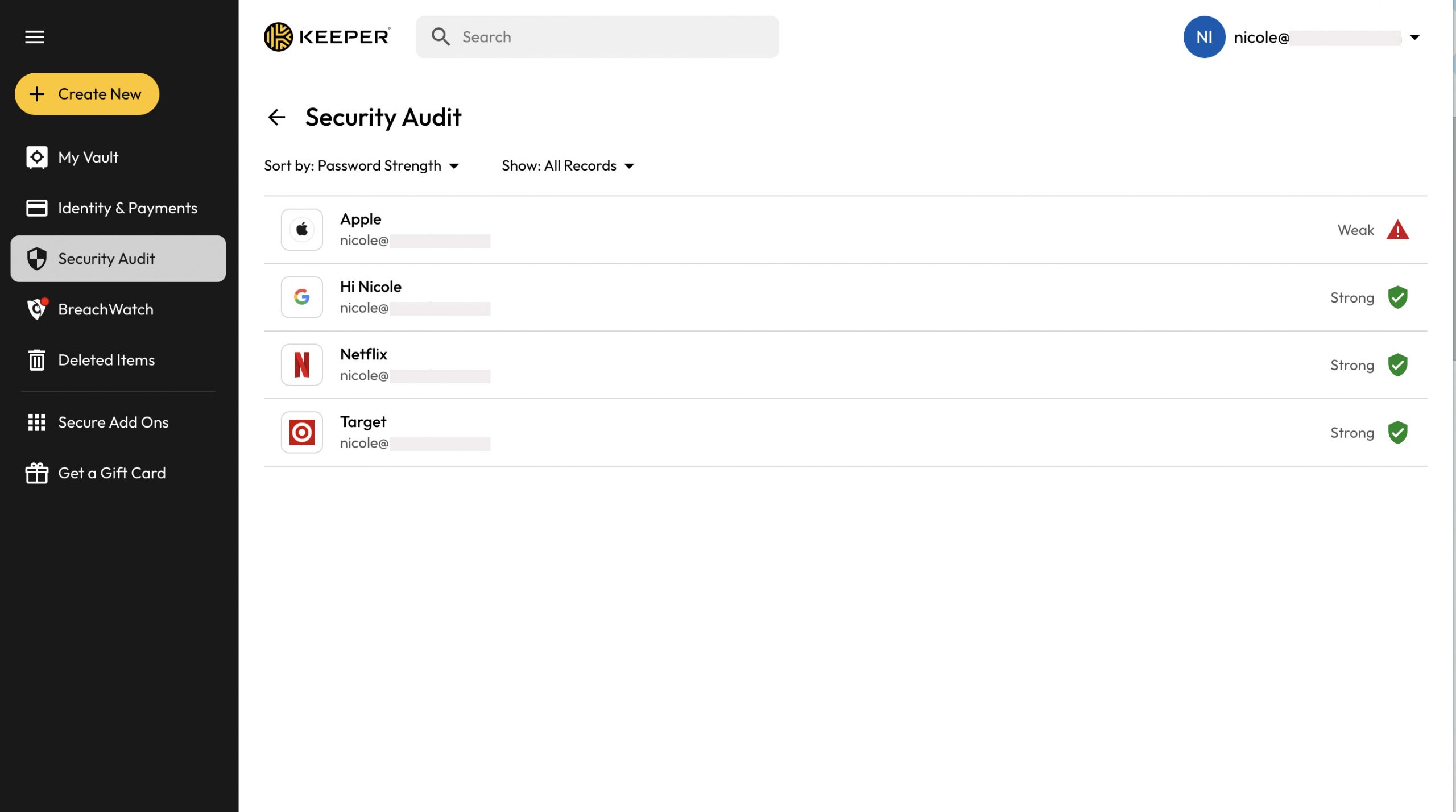
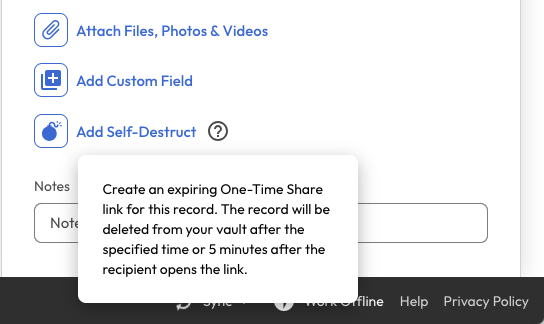
Keeper stands out for its advanced security and exceptional customization across devices. Keeper uses 256-bit AES encryption with zero-knowledge architectur, meaning no one can access your vault, including Keeper. Secure record sharing and breach monitoring enhance it’s robust protection, but its BreachWatch is an add-on that other competitors provide as standard. I also appreciated the self-destruct sharing option, which automatically deletes shared records after a set period.
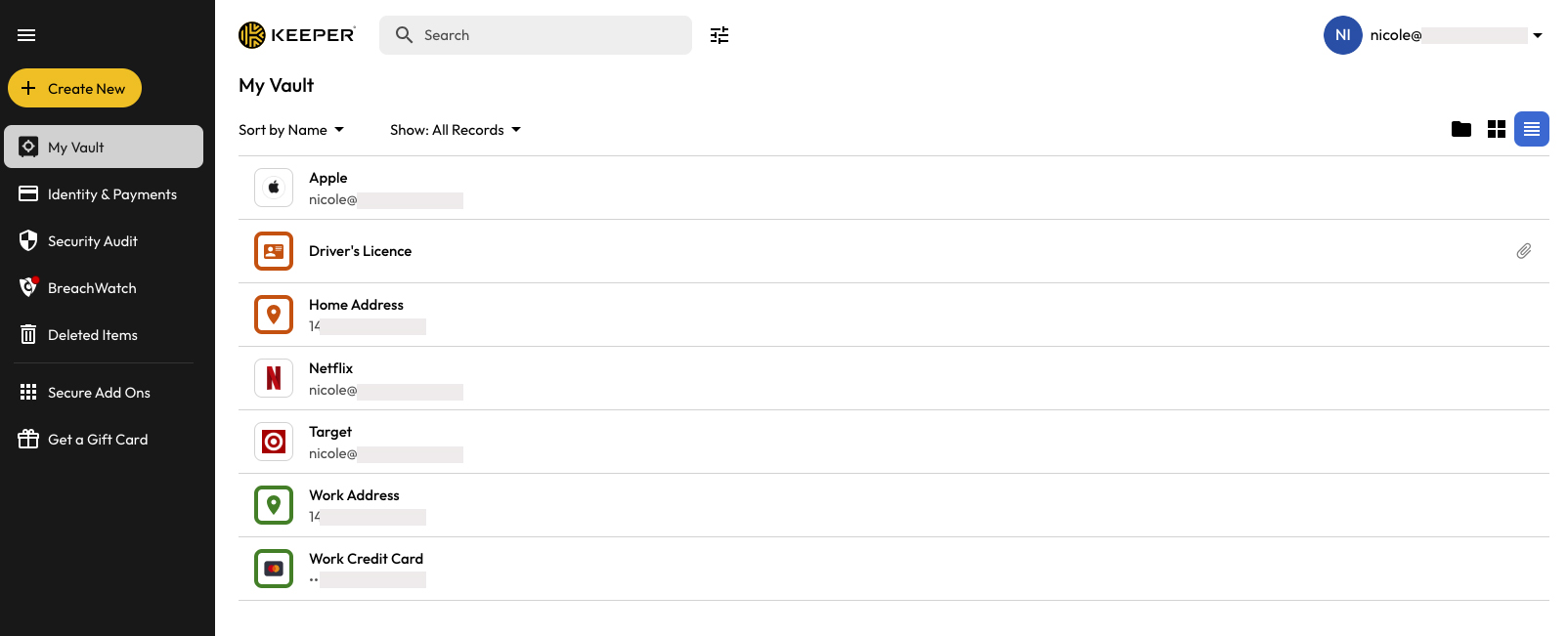
What sets Keeper apart is its vault customization. During testing, I liked how easy it was to create, organize, and color-code records. The interface supports both list and grid views, making it easy to manage complex data. It’s available across virtually every platform and browser, and setup was fast and simple on all devices we tested.
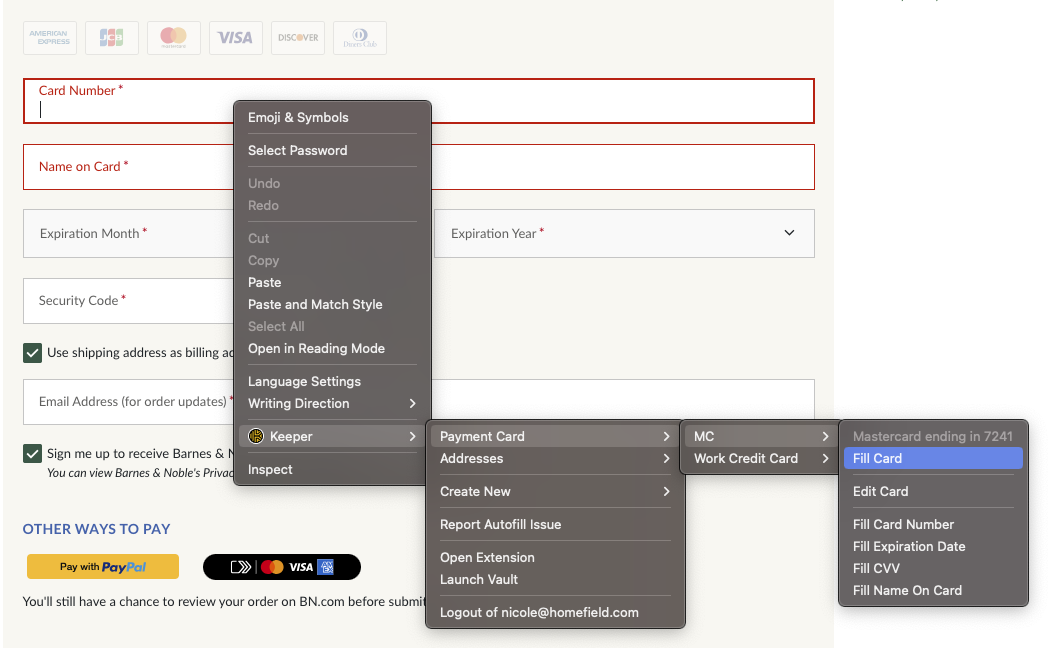
Autofill performed well for standard login fields but required manual clicks for form data like addresses or credit cards, which is a minor inconvenience that may matter if you fill out forms frequently. Keeper also supports many multi-factor authentication (MFA) methods, including biometric login and third-party apps.
Who is Keeper best for? Keeper is ideal for families, businesses, and anyone who wants full control over how their vault looks, works, and secures data.
Recent upgrades to Keeper: Recent updates include improved vault sharing, expanded record types, and a new notification center for business plans.
Keeper has also added passkey management, allowing you to store and use passkeys for supported websites directly from your vault.
Keeper pricing: Keeper Personal starts at $1.79/month (billed annually), with frequent discounts. The Family plan starts at $3.83/month for five vaults. A free version is available, but it is limited to a single mobile device and stores only 10 records, so most users will benefit from upgrading to a premium subscription.
Pros and cons of Keeper
Pros
Advanced vault customization
Wide 2FA and biometric login support
Self-destruct sharing and BreachWatch monitoring
Excellent business features and admin tools
Cons
Free plan is very limited (10 records, one mobile device)
RoboForm earned our top spot for its fast, precise autofill and strong all-around feature set, but NordPass and Proton Pass are close behind, and the best choice depends on what matters most to you. Proton Pass stands out for privacy-focused users thanks to its Swiss jurisdiction, open-source code, and built-in email aliases.
All three of our top picks offer plans under $3 per month, making strong password management accessible without a big spend. Each also provides a free trial or free tier, so you can test the experience before committing.
These three password managers share an important quality: none has experienced a data breach. Your credentials are stored in an encrypted vault using zero-knowledge architecture, meaning even the provider can’t access your data.
All three are designed to be approachable regardless of your technical experience. Setup takes minutes, and the browser extensions and mobile apps sync automatically. That matters just as much for a family sharing logins as it does for a business rolling out password management across a team.
Beyond our top three, several other password managers are worth considering depending on your priorities:
Bitwarden is a capable, open-source password manager with one of the most generous free plans available: unlimited passwords and devices at no cost. The paid Premium tier ($19.80/year) adds features like encrypted file storage and emergency access. It’s the strongest option for budget-conscious users and open-source advocates, though its interface is less polished than some competitors and autofill can be inconsistent on certain sites.
LastPass was once a leading recommendation, but the 2022 data breach, in which encrypted password vaults were stolen, damaged user trust. LastPass has since made security improvements, but the breach remains a concern. Its free tier is now limited to a single device type (desktop or mobile, not both), which is more restrictive than alternatives like Bitwarden or Proton Pass. If you’re a current LastPass user, it may be worth evaluating whether a competitor better meets your needs.
1Password remains a strong alternative, especially for users who prioritize polished design and seamless syncing across Apple devices. Its Watchtower feature flags weak, reused, and breached passwords, and Travel Mode lets you hide sensitive vaults when crossing borders. At $2.39/month (~$28.68/year) for individuals or $4.49/month (~$53.88/year) for families (up to 5 members), billed annually, it’s a mid-range premium option that consistently earns top marks from independent reviewers.
Dashlane stands out for including a built-in VPN and dark web monitoring, making it a strong all-in-one security tool. Note that Dashlane has discontinued its free personal plan and is now a paid-only product (a 14-day free trial is offered). Premium starts at $5.42/month billed annually, which is steeper than most, but if you would otherwise pay separately for a VPN, the bundled value may be worth it.
Keeper is a strong choice for users who need granular sharing controls, organizational tools like folders and subfolders, and robust business features. Its free plan is restrictive (limited to one mobile device and ten stored records), but paid Personal ($1.79/month) unlocks unlimited devices, sync, and a well-polished experience trusted by enterprises. See our full review above.
Whichever password manager you choose, the most important step is using one at all and letting it generate strong, unique passwords for every account. Most of these tools include a built-in password generator, which removes the guesswork and reduces your exposure to credential-based attacks.
Provider
Score (4.8)
Starting Price $0.99/mo Premium
Free Trial 30-day
Encryption AES-256
Passkey Support
Open Source
2FA
Platform Compatibility Windows, Mac, iOS, and Android support for their respective major browsers, including Microsoft Edge
Platform Compatibility Windows, macOS, Linux, Android, iOS, and popular browsers, such as Google Chrome, Firefox, Microsoft Edge, Brave, Opera, and Safari
Platform Compatibility Windows, macOS, Linux, Android, iOS, and popular browsers, such as Google Chrome, Firefox, Microsoft Edge, Brave, Opera, and Safari
Different users have different priorities. Here’s a quick guide to the best password manager for your situation, with links to our dedicated guides for each category.
Best Free Password Manager: Bitwarden
Bitwarden’s free plan includes unlimited passwords and unlimited devices with no storage cap, making it the most capable free option available. If you want full functionality without paying, start here. See our Best Free Password Managers guide →
Best Password Manager for Privacy: Proton Pass
Proton Pass is built by the team behind Proton Mail, operates under Swiss privacy law, and publishes its code as open source. It includes built-in email aliasing (hide-my-email) and integrates with Proton Sentinel threat detection on paid plans. If protecting your identity matters as much as protecting your passwords, Proton Pass is the clearest fit. See our full Proton Pass review →
Best Password Manager for Families: 1Password
1Password’s Families plan ($4.49/month, ~$53.88/year billed annually, for up to 5 members) makes it easy to share logins while keeping personal vaults private. Shared vaults, permission controls, and a clean interface make it a strong fit for households. See our Best Password Managers for Families guide →
Best Password Manager for Business: NordPass
NordPass Business offers centralized admin controls, activity logs, and enforced security policies, making it a practical choice for small to midsize teams. Keeper is another strong option for organizations needing granular permissions. See our Best Password Managers for Business guide →
Best Password Manager for iPhone: RoboForm
RoboForm’s redesigned iOS app with browser-style navigation and Safari credential import makes it a smooth experience on iPhone. 1Password is also excellent on iOS with native passkey support. See our Best iPhone Password Managers guide →
1Password’s native Mac app is fast, well-designed, and integrates with Touch ID and Safari. It’s consistently rated as the best password manager experience on macOS. See our Best Mac Password Managers guide →
A passkey is a newer form of authentication that replaces traditional passwords with public-key cryptography. When you create a passkey for a website, your device generates a unique key pair: a private key stored securely on your device, and a public key stored by the website. To log in, your device proves it holds the private key, typically verified through a fingerprint, face scan, or device PIN. The private key never leaves your device and is never shared with the website, which makes passkeys resistant to phishing, credential stuffing, and server-side breaches.
Passkeys are backed by the FIDO Alliance and supported by Apple, Google, and Microsoft. Adoption is growing. Sites like Google, Amazon, PayPal, and GitHub already support passkey login. Several of the password managers in this guide now support storing and managing passkeys: RoboForm, NordPass, Proton Pass, 1Password, Dashlane, Bitwarden, and Keeper all offer passkey functionality, so you can manage passkeys alongside your traditional credentials in one place.
Does this mean passwords are going away? Not yet. Most websites still require a traditional password as a primary or fallback login method, and passkey support varies across platforms and browsers. But the direction is clear: passkeys offer stronger security with less friction, and enabling them on your most important accounts (email, banking, cloud storage) is a worthwhile step. Your password manager will handle both passwords and passkeys during the transition.
Should You Use Your Browser's Built-In Password Manager?
Modern browsers like Chrome, Safari, Firefox, and Edge all include built-in password managers that can generate, save, and autofill your login credentials. Google Password Manager and Apple Passwords (the successor to iCloud Keychain) have improved a lot in recent years. Both now support passkeys, password health checks, and cross-device syncing within their ecosystems. If you’re not using any password manager right now, your browser’s built-in option is a real upgrade over reusing passwords or writing them down.
That said, browser-based password managers have real limitations. They work best within a single ecosystem. Google Password Manager is tied to Chrome, and Apple Passwords is designed for Safari and Apple devices. If you use a mix of browsers, operating systems, or devices, your passwords won’t sync reliably across all of them. Browser managers also lack features that dedicated tools provide: secure password sharing with family or coworkers, dark web breach monitoring, encrypted file storage, emergency access, and detailed security reports.
For most users, a standalone password manager offers more flexibility, stronger features, and better cross-platform support. But if you’re an all-Apple or all-Chrome household and your needs are simple, the built-in tools are a reasonable starting point.
How to Create a Strong Master Password
Your master password is the one password you’ll need to remember. It unlocks your entire vault, so it needs to be both strong and memorable. The most effective approach is a passphrase: pick 4 to 5 random, unrelated words and string them together, then add a number and a symbol. Something like correct-lamp-bicycle-ocean-41! is far stronger than a short, complex password like P@ssw0rd! and much easier to remember. Aim for at least 16 characters.
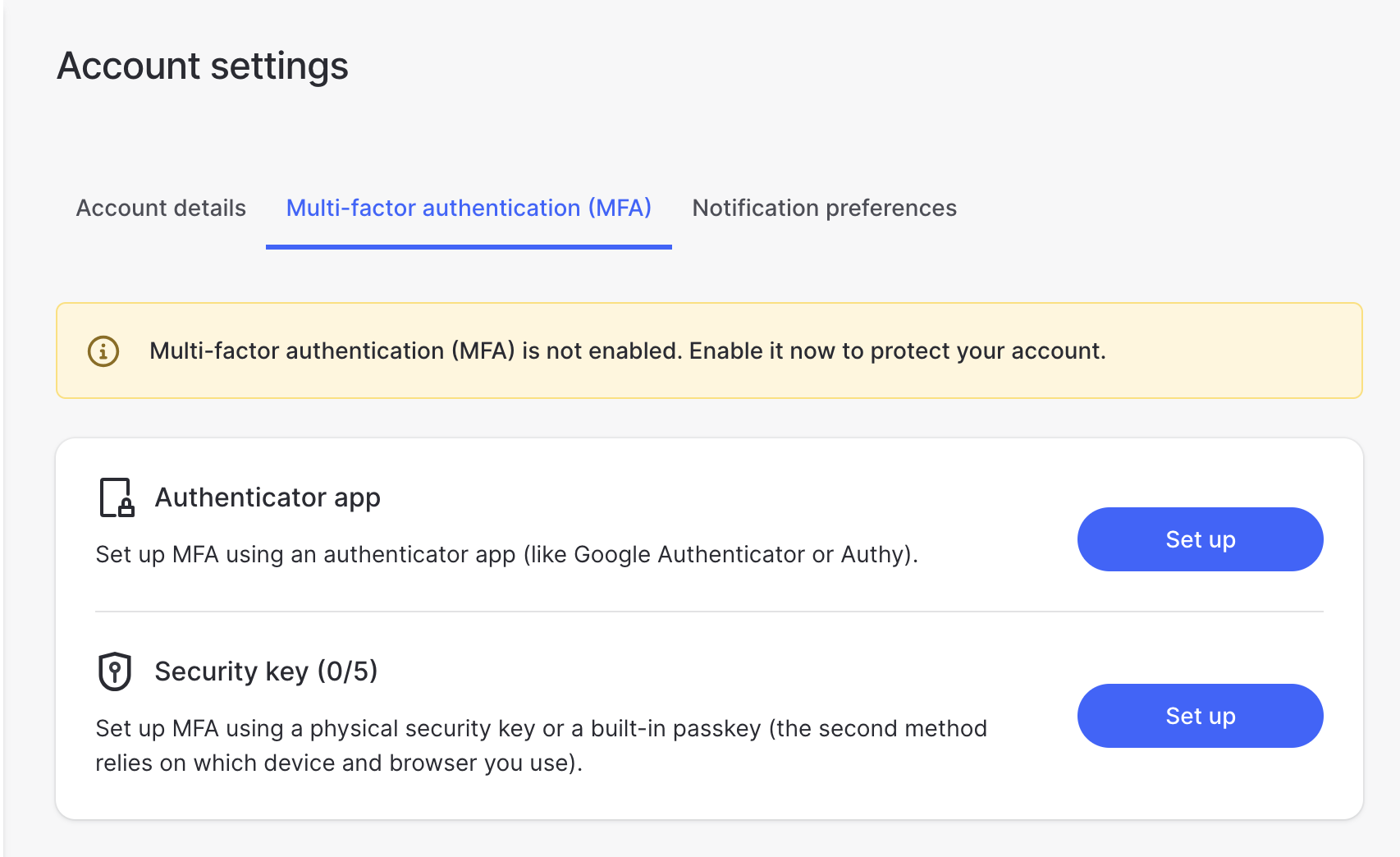
Write your master password down and store it somewhere physically secure, like a locked drawer or a safe, in case you forget it. Most password managers use zero-knowledge architecture, which means they cannot reset your master password for you. If you lose it, you lose access to your vault. Once your master password is set, enable two-factor authentication (2FA) on your password manager account for an additional layer of protection. A TOTP app or hardware security key is more secure than SMS-based 2FA.
FAQ: What You Need to Know About Password Managers
What is a password manager?
A password manager is a software tool that securely stores, generates, and autofills your login credentials across all your accounts and devices. Instead of memorizing dozens of unique passwords, you only need to remember one master password. The password manager handles the rest, creating strong, randomized passwords for each site and filling them in automatically when you log in.
Most password managers use strong encryption to protect your data, so even the provider can’t see your stored passwords. They work through a combination of desktop apps, mobile apps, and browser extensions that sync your vault across devices. Many also include extras like dark web monitoring, secure sharing, and two-factor authentication support. If you’ve ever reused a password or relied on your browser to remember logins, a dedicated password manager is a real upgrade. The average person manages over 100 online accounts, and a password manager makes sure each one has a strong, unique credential.
How do password managers work?
Password managers are third-party apps designed to simplify and enhance the security of managing your passwords. These tools create and store your passwords, allowing you only to remember a single secure master password.
When you sign up with a password manager service and install the necessary software or browser extensions, it will generate and save strong passwords for your accounts and the websites you visit. This eliminates the need for you to create and remember complex passwords for each account manually. Password managers often offer unlimited password storage and provide additional protection against identity theft.
With a password manager, you can log into your accounts by entering just the master password, as the program autofills the corresponding account password. You only need to remember one master password while having stronger and unique passwords for all your accounts.
What makes a password secure?
Creating a secure password protects your online accounts and sensitive information. Security experts recommend using complex, random, and difficult-to-guess passwords. A strong password typically consists of at least 16 characters and includes a combination of upper and lower case letters, numbers, and special characters. It’s important to avoid using personal information, dictionary words, usernames, or easily guessable patterns. Additionally, using the same password for multiple accounts should be avoided. You can significantly enhance the security of your online accounts by following these guidelines and employing strong, unique passwords.
Can't I just use my web browser to manage my passwords?
Browser-based password managers have improved. Google Password Manager and Apple Passwords both offer decent baseline protection. But they’re limited to their own ecosystems and lack features like secure sharing, dark web monitoring, and cross-browser sync. For most users, a standalone password manager is the better choice. See our full breakdown in the “Should You Use Your Browser’s Built-In Password Manager?” section above.
Can password managers be hacked?
Just like any other software or online service, password managers have a potential risk of data breaches or vulnerabilities. Using a secure password manager still offers significant protection due to the security protocols in place. Reputable password managers employ strong encryption techniques to safeguard your data and continuously update their systems to address any identified vulnerabilities promptly.
Password managers are vested in maintaining their reputation by prioritizing customer security and promptly resolving weaknesses. Choosing a reputable password manager and regularly updating your software is crucial to benefit from the latest security enhancements.
Are password managers safe to use?
Yes. Reputable password managers are one of the safest ways to protect your online accounts. They use zero-knowledge encryption, which means your passwords are encrypted on your device before they’re ever sent to a server. Even the password manager company can’t access your vault. If their servers were compromised, attackers would only find encrypted data that’s unreadable without your master password.
Leading password managers also undergo regular third-party security audits and publish the results. Combined with two-factor authentication and biometric unlock, a good password manager provides multiple layers of defense. The alternative, reusing simple passwords or storing them in a spreadsheet, carries far greater risk. A password manager removes that problem by generating strong, unique passwords for every account.
Do password managers track my information?
Trustworthy password managers prioritize user privacy and employ a zero-knowledge protocol. With zero-knowledge protocol, your information is encrypted on your device before storing it on any server. It can’t be read or accessed by anyone, including the password manager provider.
Zero-knowledge protocol ensures that your passwords and sensitive data remain protected even in a data breach or unauthorized access to the server. Additionally, some password managers offer the option of local data storage, where your passwords never leave your local network, providing an extra layer of security and peace of mind.
What's the difference between a free and paid password manager?
A free password manager gives you the core essentials (securely storing, generating, and autofilling passwords) at no cost. Options like Bitwarden and Proton Pass offer generous free tiers that include unlimited passwords and cross-device sync, making them strong starting points for anyone new to password management.
Paid plans unlock features that matter more as your needs grow: priority customer support, advanced sharing options, dark web monitoring, encrypted file storage, and emergency access. Some free plans also limit the number of devices or restrict certain security features to paid tiers. For most individual users, a free plan from a reputable provider is a secure and practical choice. If you need more flexibility, especially around sharing, monitoring, or admin controls, premium plans typically run $1 to $5 per month.
Are free password managers secure?
Yes, reputable free password managers employ robust encryption algorithms and security protocols to ensure the safety of your sensitive data. However, choosing a trustworthy and reputable password manager is important to minimize potential risks. Always review a free password manager’s security features and privacy policy before using it.
Can I trust an open-source password manager?
Open-source password managers are generally considered more secure because their source code is publicly available for scrutiny and auditing by security experts. This transparency allows potential vulnerabilities to be identified and fixed promptly. However, it’s still crucial to choose an open-source password manager from a reputable developer and keep it updated to benefit from the latest security patches.
What are the limitations of the free version of a password manager?
The limitations of the free version of a password manager may vary depending on the specific software. Common limitations include a limited number of passwords that can be stored, restricted access to advanced features, and occasional advertisements.
What is a passkey, and do I need one?
A passkey is a newer form of authentication that replaces your password with public-key cryptography. Instead of typing a username and password, you verify your identity using a fingerprint, face scan, or device PIN. Your device holds a private key that never leaves it, while the website stores a matching public key. This makes passkeys resistant to phishing and data breaches since there’s no shared secret to steal.
You don’t need to switch to passkeys overnight. Most sites still support traditional passwords, and the transition is happening gradually. But if your password manager supports passkeys (most in this guide do), enabling them on your most important accounts adds a strong layer of protection. See our “What Is a Passkey?” section above for a full breakdown.
What happened to LastPass?
In 2022, LastPass experienced a major data breach in which attackers accessed encrypted password vaults along with customer metadata (email addresses, billing info, and vault-related data). While the vaults remain encrypted and would require the user’s master password to decrypt, the breach raised serious concerns, particularly for users with short or weak master passwords whose vaults could potentially be cracked over time.
LastPass has since made security improvements, but the incident remains a factor when comparing it against competitors that have maintained clean track records. If you’re a current LastPass user, review your master password strength and consider whether an alternative like RoboForm, NordPass, or Bitwarden better meets your needs. If you choose to stay, enable two-factor authentication and make sure your master password is long and unique.
What about Apple Passwords (iCloud Keychain)?
Apple Passwords (formerly known as iCloud Keychain) is a built-in password manager available across iPhone, iPad, Mac, and Safari. It can generate strong passwords, autofill logins, store passkeys, and flag weak or reused credentials. For users who live entirely within the Apple ecosystem, it’s a solid, no-cost option that works without installing anything extra.
The main limitation is ecosystem lock-in. Apple Passwords doesn’t work well outside Safari or Apple devices. If you use Chrome, Windows, or Android, your passwords won’t follow you. It also lacks features like secure sharing with non-Apple users, dark web monitoring, and the organizational tools (folders, tags, custom fields) that dedicated password managers offer. For cross-platform users or anyone who needs sharing and advanced features, a standalone manager is the better fit.
Do I need a VPN if I already use a password manager?
Yes, even if you use a password manager, a VPN is still essential. A password manager protects your login credentials, but it doesn’t encrypt your internet traffic. The best VPN adds a crucial layer of protection by hiding your IP address and securing your data from hackers, trackers, and snooping, especially on public Wi-Fi. Together, a VPN and password manager create a powerful combo for safeguarding both your credentials and your overall online privacy.
How I Rated the Best Password Managers of 2026
All password managers essentially generate and store passwords. As I developed my recommendations for the best password managers, I compared software on what matters most, including price, platform compatibility, and security. I also reevaluated our list of over 25 password managers on the market to see if they’re still worth considering. (Kaspersky, for example, can no longer be sold in the United States as of 2024.)
I signed up for a plan with each provider to test:
Plan value: Most offer various subscription plans from free to around $20 per month. While free plans may be sufficient for some, those that need more functionality may prefer paid plans. We included an array of free and paid password managers to find the one that works best for you.
Platform compatibility: Your password manager should be compatible with various devices (including desktops, laptops, tablets, and phones), operating systems, and browsers, and sync seamlessly between them all.
UX: This is how you interface with all the features and functions of your new password manager — if it’s bad, you’ll be less likely to use the service. While this is a highly subjective category, it’s important to provide an overview based on my experience.
Form filling: A password manager doesn’t have to include form-filling, but it’s somewhat standard, and the ease with which it performs that function can be the deciding factor in which password manager you ultimately choose.
Security: Since a password manager is a security tool, it should have the most current standard security features. This includes the highest level of encryption (256-bit AES with PBKDF2-HMAC-SHA512), 2FA, such as biometric logins or multi-factor authentication, and a password generator.
Two-factor authentication (2FA): Used all over the internet to protect your accounts, this is quickly becoming a standard security practice. 2FA is a great way to secure more sensitive accounts to ensure they’re not breached.
Passkey support: As passkeys become more widely adopted, I tested whether each password manager can store, manage, and autofill passkeys for compatible websites. This is an increasingly important feature for staying ahead of evolving authentication standards.
Gunnar is a Cyber Team Lead for a DOD contracting company in Huntsville, Alabama. He has also worked as a computer network defense (CND) Cyber Analyst. Additionally, Gunnar is an author and content creator for a cybersecurity academy. He spent nearly 15 years in the Army as a musician, prior to getting into the cyber field. Through hard work and dedication, he landed his first cybersecurity role within 10 months. After deciding to pursue cyber, he attended a couple of bootcamp training programs that gave him the knowledge and hands-on practice he needed to excel in his first cyber job. He is passionate about all things cyber. Gunnar was a speaker on a panel at the 2022 InfoSec World conference, giving a talk entitled, “Hacking into a Cyber Career – True Stories.” Also, he is a mentor to entry-level cybersecurity candidates seeking to break into the field. When he’s not working, he enjoys playing guitar and fishing (not phishing).